

QESTNET Internal:Developer Setup QESTNET: Difference between revisions
Shane.rowley (talk | contribs) |
David.lucas (talk | contribs) No edit summary |
||
| (7 intermediate revisions by 3 users not shown) | |||
| Line 12: | Line 12: | ||
*Run the batch file '''~\qestnet\QESTNET\copy_default_config.bat''' | *Run the batch file '''~\qestnet\QESTNET\copy_default_config.bat''' | ||
*The batch file will go through the qestnet repository and create '''.config''' files from the '''.default''' files. | *The batch file will go through the qestnet repository and create '''.config''' files from the '''.default''' files. | ||
=====Unhandled Login Fault Exception===== | |||
*Open '''~\qestnet\QESTNET\QESTNET.sln''' | |||
*Go to '''Debug > Exceptions''' | |||
**Find '''System.ServiceModel.FaultException`1''' | |||
**Uncheck '''User-unhandled'''.<BR> This will stop the debugger breaking on a fault exception catch every time you login. It is on a "to do" list somewhere to fix... really I (DL) promise. | |||
=====QESTLab Schema Generator Setup===== | =====QESTLab Schema Generator Setup===== | ||
| Line 19: | Line 25: | ||
**Open the app.config file in the project QESTNET.Service\QESTNET. | **Open the app.config file in the project QESTNET.Service\QESTNET. | ||
**Edit the QESTLab_Data connection string to point to the QESTLab database you want to connect to.<br><br>''<add name="QESTLab_Data" connectionString="metadata=res://*/Spectra.QESTLab.Data.Entities.QESTLabModel.csdl|res://*/Spectra.QESTLab.Data.Entities.QESTLabModel.ssdl|res://*/Spectra.QESTLab.Data.Entities.QESTLabModel.msl;provider=System.Data.SqlClient;provider connection string="<span style="color:#0000FF">data source=ADLD0031;initial catalog=fugro_20150320_qestlab;</span>integrated security=True;multipleactiveresultsets=True;App=EntityFramework"" providerName="System.Data.EntityClient" />''<br><br> | **Edit the QESTLab_Data connection string to point to the QESTLab database you want to connect to.<br><br>''<add name="QESTLab_Data" connectionString="metadata=res://*/Spectra.QESTLab.Data.Entities.QESTLabModel.csdl|res://*/Spectra.QESTLab.Data.Entities.QESTLabModel.ssdl|res://*/Spectra.QESTLab.Data.Entities.QESTLabModel.msl;provider=System.Data.SqlClient;provider connection string="<span style="color:#0000FF">data source=ADLD0031;initial catalog=fugro_20150320_qestlab;</span>integrated security=True;multipleactiveresultsets=True;App=EntityFramework"" providerName="System.Data.EntityClient" />''<br><br> | ||
*Open '''~\qestnet\QESTNET\QESTNET.Service.Lab\ | *Open '''~\qestnet\QESTNET\QESTNET.Service\QESTNET\app.config''' | ||
*Open '''~\qestnet\QESTNET\QESTNET.Service\QESTNET.Sessions\app.config''' | |||
*Open '''~\qestnet\QESTNET\QESTNET.Custom\QESTNET.Custom.Fugro.DataBackbone.Tests\app.config''' | |||
*Open '''~\qestnet\QESTNET\QESTNET.Sessions.Lab\Tester\app.config''' | |||
**Check or change the storage location.<br><br>''<add key="fileStorePath" value="<span style="color:#0000FF">C:\NEEDSTOEXIST</span>" />''<br><br> | **Check or change the storage location.<br><br>''<add key="fileStorePath" value="<span style="color:#0000FF">C:\NEEDSTOEXIST</span>" />''<br><br> | ||
*Open the program Windows PowerShell ISE with Administrator rights. | *Open the program '''Windows PowerShell ISE''' with Administrator rights. | ||
**Enter '''set-executionpolicy remotesigned''' into the console | **Enter '''set-executionpolicy remotesigned''' into the console | ||
**This comes up, click Yes | **This comes up, click Yes | ||
| Line 28: | Line 37: | ||
*In Visual Studio, right-click the '''GenerateDataSchema.ps1''' file under QESTNET.Sessions.Lab\QESTLab.Data\Entities and select Open With | *In Visual Studio, right-click the '''GenerateDataSchema.ps1''' file under QESTNET.Sessions.Lab\QESTLab.Data\Entities and select Open With | ||
**Click add new program (“Add...”) | **Click add new program (“Add...”) | ||
**Enter the PowerShell | **Enter the PowerShell Executable (C:\WINDOWS\system32\WindowsPowerShell\v1.0\powershell_ise.exe) | ||
**Click OK? | **Click OK? | ||
**Click “set as default” on the open with window. | **Click “set as default” on the open with window. | ||
**Click OK. | **Click OK. | ||
The file can now be run using PowerShell by double clicking on it in Visual Studio. | The file can now be run using PowerShell by double clicking on it in Visual Studio. Run this file. | ||
=====Build QESTLab.Data===== | =====Build QESTLab.Data===== | ||
| Line 59: | Line 68: | ||
**The batch file assumes naively that InstallUtil.exe is installed at "C:\Windows\Microsoft.NET\Framework\v4.0.30319\InstallUtil.exe". If it is not, you will need to change the batch file to suit your local machine. Do not commit these changes. | **The batch file assumes naively that InstallUtil.exe is installed at "C:\Windows\Microsoft.NET\Framework\v4.0.30319\InstallUtil.exe". If it is not, you will need to change the batch file to suit your local machine. Do not commit these changes. | ||
*Open Services from the control panel. | *Open Services from the control panel. | ||
*Right click the QESTNET service and select properties. Change the Log On permissions to your account ("sqaus | *Right click the QESTNET service and select properties. Change the Log On permissions to your account ("sqaus\''your.name''") or the windows NETWORK SERVICE account. If you use the NETWORK SERVICE account you will need to ensure it has the necessary permissions to ports and files the qestnet service will use. | ||
*Start the service | *Start the service | ||
[[Image:QESTNET Service.jpg]] | [[Image:QESTNET Service.jpg]] | ||
Latest revision as of 00:14, 17 November 2015
QESTNET
QESTNET Repository
Complete the following steps within GitHub to fetch the QESTNET repository:
- Change the directory to your root GitHub folder (eg. cd /c/dev)
- Clone the qestnet repository (git clone git@github.com:spectraqest/qestnet.git).
- Change the directory to the new qestnet folder (cd qestnet/)
- Fetch the branch to be used for development (git fetch origin branch_name).
- Checkout the branch (git checkout branch_name).
App Configuration
Config files often have ever changing information specific to your setup in them. As such files with extension .config are ignored by git. See .gitignore files for other files git will ignore. All config files have an associated default file. e.g., app.config has app.config.default. This will give a new setup a starting template. If you add additional configuration properties make sure the .default file is updated as this is the only one committed to git.
- Run the batch file ~\qestnet\QESTNET\copy_default_config.bat
- The batch file will go through the qestnet repository and create .config files from the .default files.
Unhandled Login Fault Exception
- Open ~\qestnet\QESTNET\QESTNET.sln
- Go to Debug > Exceptions
- Find System.ServiceModel.FaultException`1
- Uncheck User-unhandled.
This will stop the debugger breaking on a fault exception catch every time you login. It is on a "to do" list somewhere to fix... really I (DL) promise.
QESTLab Schema Generator Setup
- Open ~\qestnet\QESTNET\QESTNET.Sessions.Lab\QESTLab.SchemaGenerator\ QESTLab.SchemaGenerator.sln.
- Build the solution, there should be no errors.
- Open ~\qestnet\QESTNET\QESTNET.sln
- Open the app.config file in the project QESTNET.Service\QESTNET.
- Edit the QESTLab_Data connection string to point to the QESTLab database you want to connect to.
<add name="QESTLab_Data" connectionString="metadata=res://*/Spectra.QESTLab.Data.Entities.QESTLabModel.csdl|res://*/Spectra.QESTLab.Data.Entities.QESTLabModel.ssdl|res://*/Spectra.QESTLab.Data.Entities.QESTLabModel.msl;provider=System.Data.SqlClient;provider connection string="data source=ADLD0031;initial catalog=fugro_20150320_qestlab;integrated security=True;multipleactiveresultsets=True;App=EntityFramework"" providerName="System.Data.EntityClient" />
- Open ~\qestnet\QESTNET\QESTNET.Service\QESTNET\app.config
- Open ~\qestnet\QESTNET\QESTNET.Service\QESTNET.Sessions\app.config
- Open ~\qestnet\QESTNET\QESTNET.Custom\QESTNET.Custom.Fugro.DataBackbone.Tests\app.config
- Open ~\qestnet\QESTNET\QESTNET.Sessions.Lab\Tester\app.config
- Check or change the storage location.
<add key="fileStorePath" value="C:\NEEDSTOEXIST" />
- Check or change the storage location.
- Open the program Windows PowerShell ISE with Administrator rights.
- Enter set-executionpolicy remotesigned into the console
- This comes up, click Yes

- In Visual Studio, right-click the GenerateDataSchema.ps1 file under QESTNET.Sessions.Lab\QESTLab.Data\Entities and select Open With
- Click add new program (“Add...”)
- Enter the PowerShell Executable (C:\WINDOWS\system32\WindowsPowerShell\v1.0\powershell_ise.exe)
- Click OK?
- Click “set as default” on the open with window.
- Click OK.
The file can now be run using PowerShell by double clicking on it in Visual Studio. Run this file.
Build QESTLab.Data
The first time QESTLab.Data is built on a machine or if the bin is cleaned out for the project the following steps will need to be done. This is due to a circular reference that exists in QESTLab.Data. The QESTLab_Data_Views.tt references the QESTLab.Data.dll which is built using the QESTLab_Data_Views.tt output.
- Exclude QESTLab_Data_Views.tt from the QESTLab.Data project
- Right-click file name and select to exclude it from the menu.
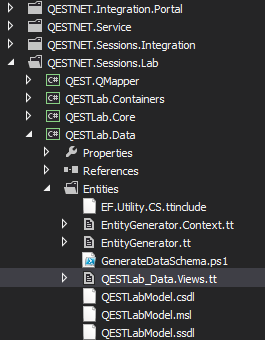
- Right-click file name and select to exclude it from the menu.
- Build QESTLab.Data project
- Include QESTLab_Data_Views.tt. If you cannot see this file, click the "Show All Files" button on the Solution Explorer toolbar.
- Right click QESTLab_Data_Views.tt and select Run Custom Tool
- Build QESTLab.Data project.

Update QESTLab.Data Schema
The following steps will update the QESTLab.Data schema to match the QESTLab database structure
- Run GenerateDataSchema.ps1
- Build QESTLab.Data project
- Right click QESTLab_Data_Views.tt and select Run Custom Tool
- Build QESTLab.Data project.
It is on the "to do" list to get the PowerShell script to do all the last three steps as well. This was initially a one click operation but no one can stop the inexorable march of progress.
Build QESTNET
- Open ~\qestnet\QESTNET\QESTNET.sln
- Build the solution. If there are only errors which start "The command mkdir and end with "NET START QESTNET exited with code 2.", continue on to the next step. Any other errors will need to be fixed before continuing.
- Errors in QESTNET.Custom are usually due to projects related to other customer's databases being compiled. Right click any Custom projects unrelated to the current customer's database you are connected to and select "Unload Project".
Create QESTNET Service
- Run ~\qestnet\QESTNET\install_qestnet_debug.bat. This will create a QESTNET windows service on your machine.
- The batch file assumes naively that InstallUtil.exe is installed at "C:\Windows\Microsoft.NET\Framework\v4.0.30319\InstallUtil.exe". If it is not, you will need to change the batch file to suit your local machine. Do not commit these changes.
- Open Services from the control panel.
- Right click the QESTNET service and select properties. Change the Log On permissions to your account ("sqaus\your.name") or the windows NETWORK SERVICE account. If you use the NETWORK SERVICE account you will need to ensure it has the necessary permissions to ports and files the qestnet service will use.
- Start the service

- Check that the service is running. If the service is not running check the Event Viewer logs to determine why.
Rebuild QESTNET
- Open ~\qestnet\QESTNET\QESTNET.sln
- Unload non-Fugro projects
- Highlight all non-Fugro Projects under QESTNET.Custom, right-click and Unload Projects
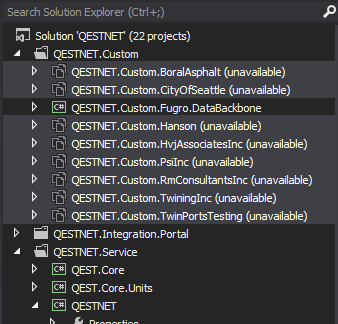
- Highlight all non-Fugro Projects under QESTNET.Custom, right-click and Unload Projects
- Build the solution. If there are no errors the QESTNET service has been successfully built and the service restarted.
