

QESTHost:User Demo: Difference between revisions
No edit summary |
David.murphy (talk | contribs) m Categorised |
||
| (10 intermediate revisions by 2 users not shown) | |||
| Line 2: | Line 2: | ||
The QESTHost environment delivers QESTLab and QESTMix to customers over the internet. This offers a huge advantage to the customer, as the performance is almost comparable to a local deployment, and the only requirement is a web browser. | The QESTHost environment delivers QESTLab and QESTMix to customers over the internet. This offers a huge advantage to the customer, as the performance is almost comparable to a local deployment, and the only requirement is a web browser. | ||
This document describes how to connect to the QESTHost environment for a user demonstration. You, the customer, will see the actual QESTLab environment, and watch as we | This document describes how to connect to the QESTHost environment for a user demonstration. You, the customer, will see the actual QESTLab environment, and watch as we guide you through the functions. Once the guided experience is over, you can then try out the features for yourself. | ||
==Requirements== | ==Requirements== | ||
| Line 9: | Line 9: | ||
==Connecting to QESTHost== | ==Connecting to QESTHost== | ||
To enter the QESTHost demonstration environment: | To enter the QESTHost demonstration environment: | ||
#Go to [https://host.spectraqest.com].<br/><br/> | #Go to [https://host.spectraqest.com https://host.spectraqest.com].<br/><br/> | ||
#In the login box, enter the demo user credentials. These will be supplied to you by SpectraQEST before the demonstration.<br/><br/> | #In the login box, enter the demo user credentials. These will be supplied to you by SpectraQEST before the demonstration.<br/><br/>[[Image:qesthost_login.jpg]]<br/><br/> | ||
[[Image:qesthost_login.jpg]] | |||
#Click on the '''Log In''' button. | #Click on the '''Log In''' button. | ||
#On the next page, you will be presented with two applications to choose from.<br/><br/> | #On the next page, you will be presented with two applications to choose from.<br/><br/>[[Image:qesthost_apps_demouser.jpg]]<br/><br/> | ||
[[Image:qesthost_apps_demouser.jpg]] | |||
#Open the '''QESTLab Client'''. | #Open the '''QESTLab Client'''. | ||
#There will be a pause as the necessary files are downloaded. If you are prompted with a messagebox to trust this publisher, click on '''Yes'''. | #There will be a pause as the necessary files are downloaded. | ||
#The QESTLab Client will open and you will be presented with the QESTLab login window.<br/><br/> | #If you are prompted with a messagebox to trust this publisher, click on '''Yes'''.<br/><br/>[[Image:qesthost_security_warning.jpg]]<br/><br/> | ||
[[Image:qesthost_qestlab_login.jpg]] | #The QESTLab Client will open and you will be presented with the QESTLab login window. You do not need to enter these details.<br/><br/>[[Image:qesthost_qestlab_login.jpg]]<br/><br/> | ||
# | #Please wait; SpectraQEST will attempt to take over your connection. A messagebox will appear asking if you wish to grant control; click on '''Yes'''.<br/><br/>[[Image:qesthost_qestlab_shadow_prompt.jpg]]<br/><br/> | ||
[[Image:qesthost_qestlab_shadow_prompt.jpg]] | #SpectraQEST will now take over the demonstration. Enjoy! | ||
# | |||
[[Category:QESTHost|{{PAGENAME}}]] | |||
Latest revision as of 01:21, 20 July 2007
Overview
The QESTHost environment delivers QESTLab and QESTMix to customers over the internet. This offers a huge advantage to the customer, as the performance is almost comparable to a local deployment, and the only requirement is a web browser.
This document describes how to connect to the QESTHost environment for a user demonstration. You, the customer, will see the actual QESTLab environment, and watch as we guide you through the functions. Once the guided experience is over, you can then try out the features for yourself.
Requirements
It is recommended that you use Internet Explorer on Microsoft Windows to access QESTHost. The latest version of Java is also recommended; if you do not have Java installed, you can download and install the Metaframe Presentation Server Client when prompted on the QESTHost login page or by clicking here.
Connecting to QESTHost
To enter the QESTHost demonstration environment:
- Go to https://host.spectraqest.com.
- In the login box, enter the demo user credentials. These will be supplied to you by SpectraQEST before the demonstration.
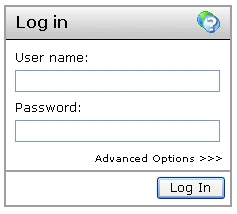
- Click on the Log In button.
- On the next page, you will be presented with two applications to choose from.
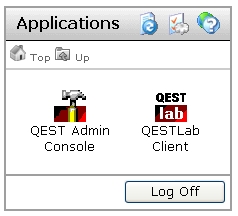
- Open the QESTLab Client.
- There will be a pause as the necessary files are downloaded.
- If you are prompted with a messagebox to trust this publisher, click on Yes.
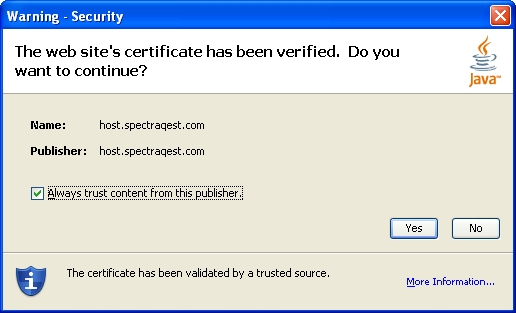
- The QESTLab Client will open and you will be presented with the QESTLab login window. You do not need to enter these details.
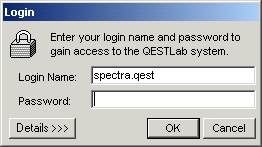
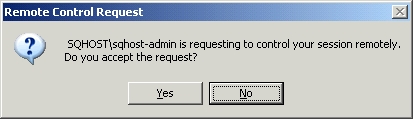
- Please wait; SpectraQEST will attempt to take over your connection. A messagebox will appear asking if you wish to grant control; click on Yes.
- SpectraQEST will now take over the demonstration. Enjoy!


