

Internal: Development Project Setup
Axosoft
A template project has been created in Axosoft. The basic Tasks and Axo Wiki pages have been created against it. Follow the steps outlined below in order to setup new Development Projects
Create the Project
- Select the [Development Project Template] project in Axosoft and do a "Detailed Copy";
Projects Pane -> More -> Copy -> Detailed Copy Project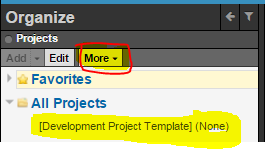
- Copy everything except
- Bugs
- Change Requests
- Incidents
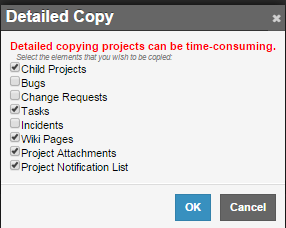
- Rename the copied Project


Project Tasks
A task would have been created for each major phase of a Project viz
- Requirements Analysis
- Technical Design
- QA
Where applicable sub-tasks may have also been created. If required additional sub-tasks can be created for specific Projects too.
A task has also been created for general/everyday Project Management
- General Management
- Rename the tasks to include the Project Name (or an easy-to-identify abbreviation of the Project Name)
- If a specific task is not required then set its Workflow Step to Closed
- Set the following on the Open tasks:-
- Customer Contact
- Release (if known): just need to set it to the major release version e.g. Batman
- Assigned To = [you]
- Log Work As
Git
Needs discussion
Axosoft Project Wiki
Might make sense to document the following against the Project Wiki in Axosoft??:
- Project Information: some small bit of information about it??
- Git branches to use for development (see Development Project Template wiki page)
Project Progress
Project Progress is updated/indicated using Workflow Step in conjunction with:
- Start Date
- Remaining Estimate
- Due Date
- Completion Date
Set the Workflow Steps as follows:
New
- Work has not started on this phase/task.
- Start Date may be set to indicate when work is expected to commence
In Progress
- Set to this workflow step when work on this phase/task starts
- Start Date should be set (if it hasn't already been set)
- Only set a Remaining Estimate when you have a good understanding of the work left. Otherwise leave it blank.
- Only set a Due Date when you have a good understanding of when you might finish. Otherwise leave it blank.
- It is possible for multiple tasks/phases (for the same Project) to be "In Progress" at the same time.
Waiting on Customer
- Set to this workflow step when you're waiting on information from someone (internal or customer). Notes should clearly what you're waiting on and who needs to respond
- Only set a Remaining Estimate when you have a good understanding of the work left. Otherwise leave it blank.
- Only set a Due Date when you have a good understanding of when you might finish. Otherwise leave it blank.
Completed
- Set to this workflow step when you're finished with this phase/task
- Set Remaining Estimate to zero
- Set Completion Date
- Don't change the Due Date. It's ok to show that the Completion Date was different to the Due Date
Closed
- If a phase/task isn't required (for this Project) then Close it
Sub Projects
If you need to create a sub-project (like an Integration project, for example) then repeat the above steps but make it a child of the Project